Overview
This section provides an overview of the Dataspace interface and its key UI elements. Users can explore entities as tiles, work with spaces, search and filter using the navigation pane and global search, create new entities, switch between visualizations, and download entity data as CSV files. Additional features such as notifications, pagination, and selection controls help users track uploads, manage large result sets, and maintain clear visibility of selected entities during workflows.
UI Layout
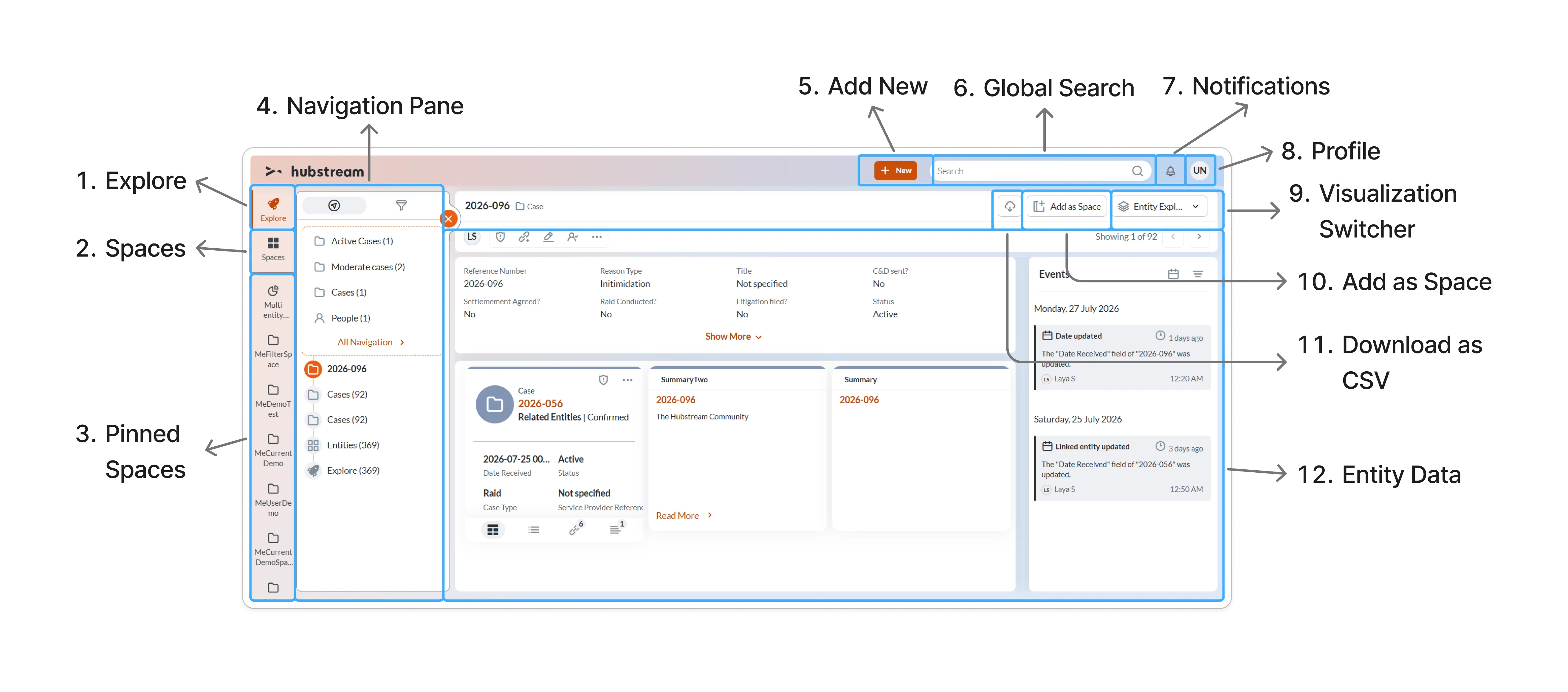
-
Explore
a. Displays the list of entities in the system.
b. All the entities are displayed as tiles with the number of entities and list of available fields.
-
Spaces - Displays the existing spaces.
-
Pinned Spaces – Displays the pinned spaces.
-
Navigation Pane - A collapsible pane that allows you to search, filter, and navigate through entities.
-
Add New - Allows you to create a new entity in a specific entity type (e.g., Investigation).
-
Global Search - Allows you to search for entities.
-
Notifications – Displays the upload notifications.
-
Profile - Displays user information such as username, ID, and organization along with Account setting options.
-
Visualization Switcher - Allows you to visualize an entity in various views.
-
Add as a Space - Allows you to add the required entities or specific filtered views as a space to access them easily.
-
Download as CSV – Allows you to download entities as a CSV file.
-
Entity Data - Displays the existing data in an entity.
Note: Entity Data vary dynamically depending on the entity type.
Notifications
Dataspace notifies you during various stages of the document upload process. Upon successful upload, a notification displays information about the parent entity to which the media/attachment is linked.
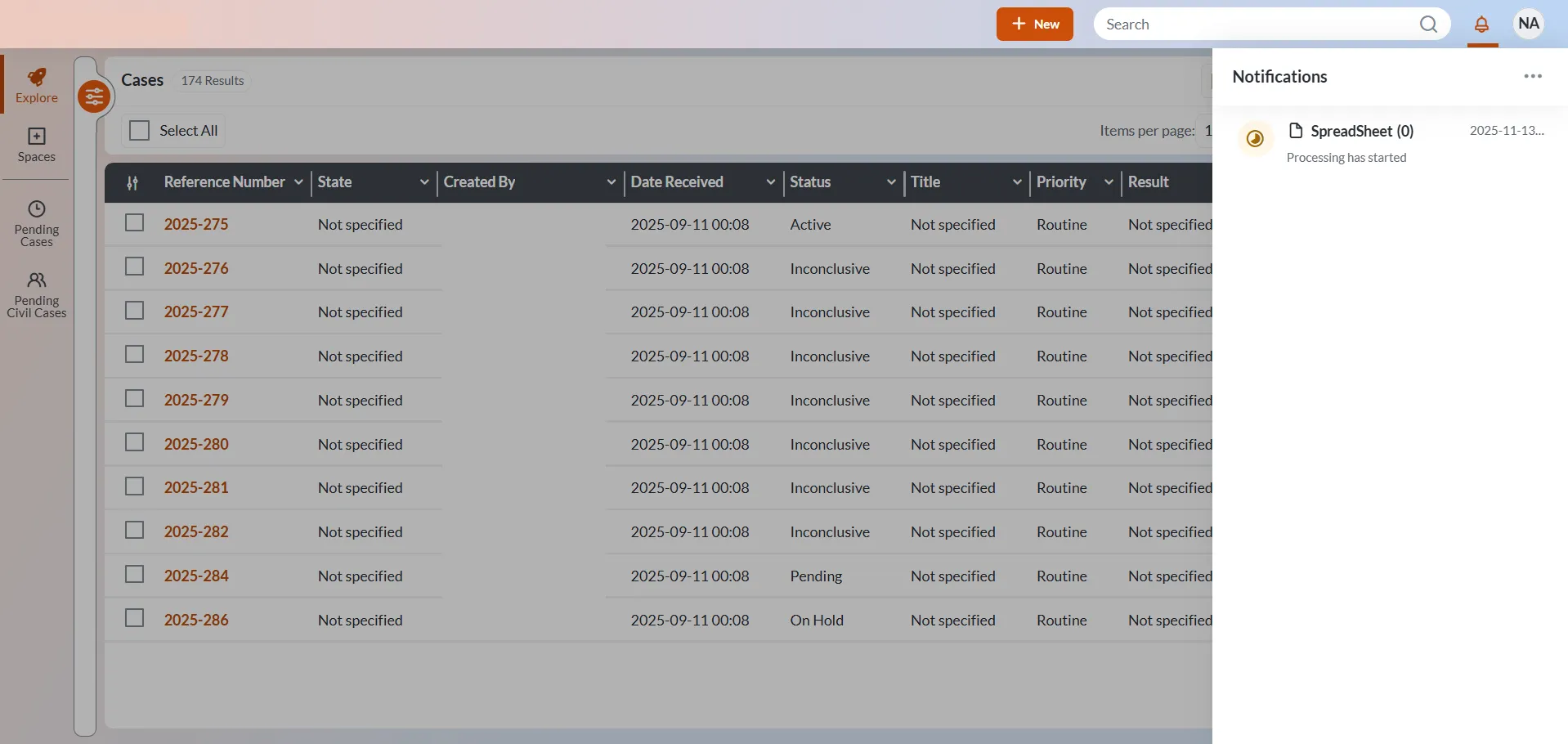 Note: By default, notification feature is disabled. To enable this feature, Config “IsAppNotificationEnabled” must be set to true.
Check your notifications
- Click the bell icon in the top-right corner of the screen.
- An orange dot appears on the bell icon indicating that there are unread notifications.
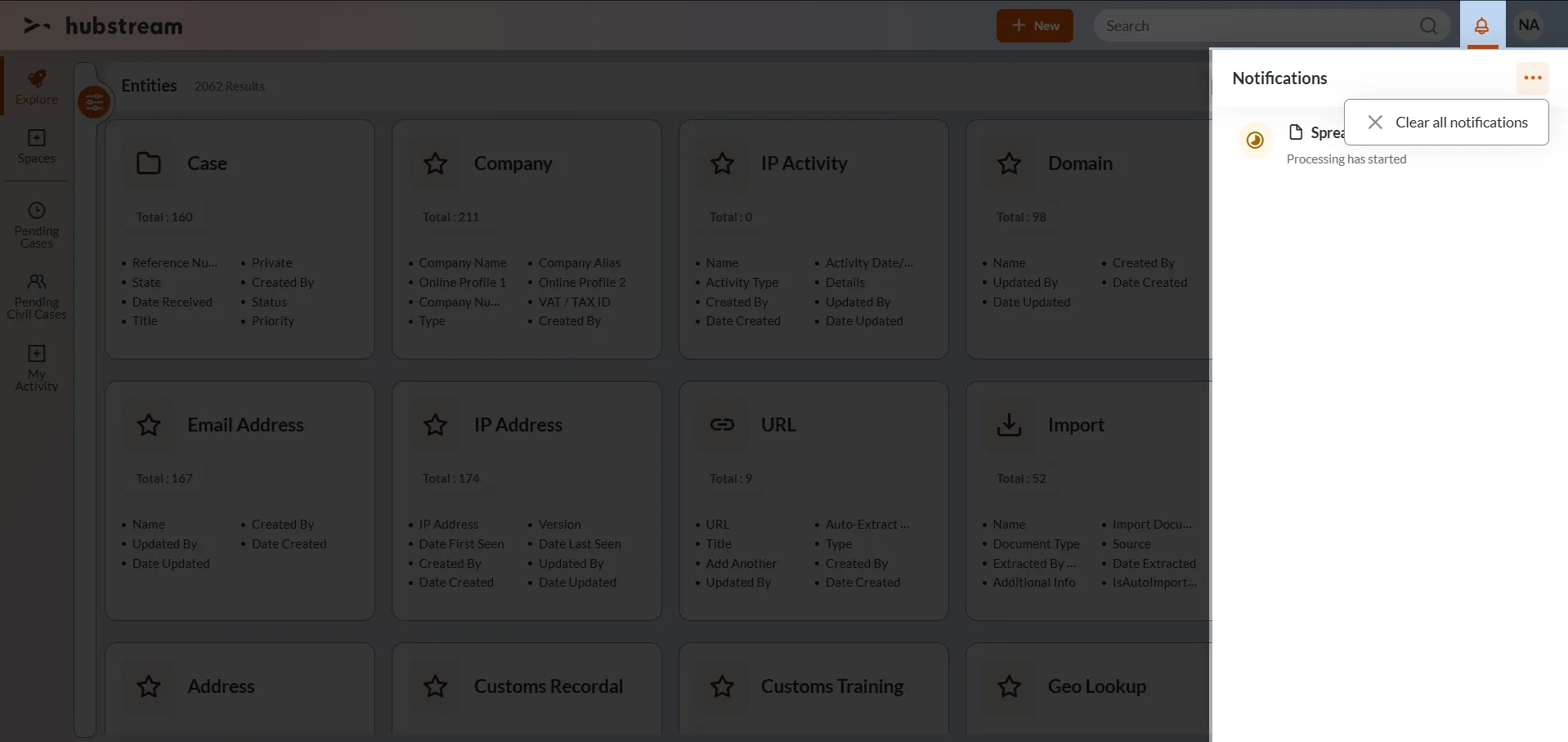
- Hover over each notification and click X to remove the notification.
- Click … in the top-right corner of the notification pane to clear all notifications.
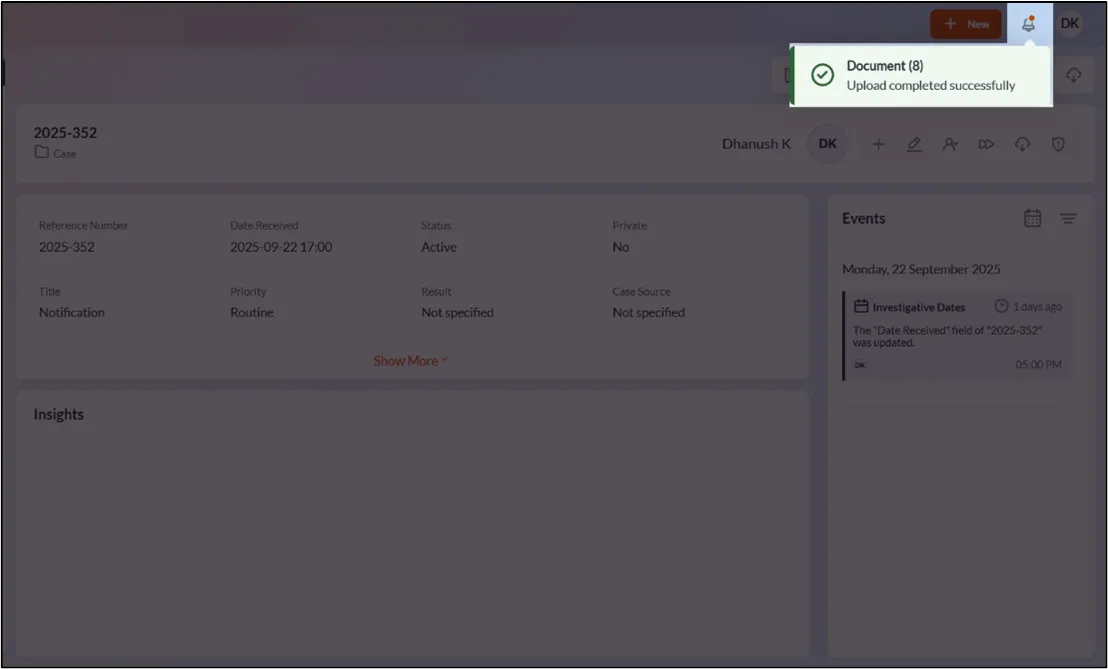
- Push notifications will appear when upload stage changes (Processing, Successful, or Failed). They disappear after a pre-set time limit based on the configuration. You can also access the notification pane by clicking the push notifications.
Pagination
You can modify the number of items displayed on a page and navigate across pages. Data space consists of:
- Items per page dropdown menu – Allows you to customize the number of entities displayed per page, from 10 (default) to 150. Once set, it is retained across all entities and visualizations within the current space, ensuring a consistent viewing experience.
- Navigation buttons – Allows you to navigate through paginated data, including Page Numbers, Next, Previous, First page and Last page buttons. These options help users move efficiently across multiple pages.
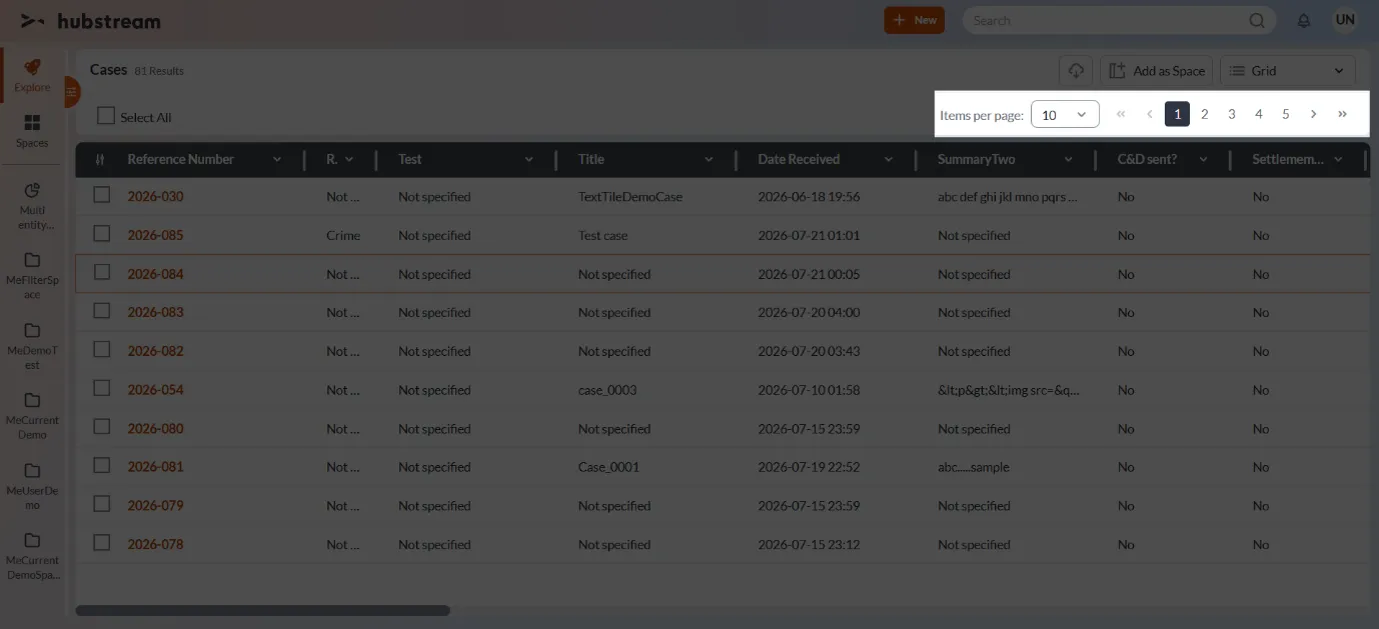 Pagination controls are located near the header on each page for easier accessibility. In dashboards, it appears at the bottom of the mini table section.
Note: Currently, pagination is not available in the Entity Explorer visualization. Pagination will be implemented once the entry display limit is increased beyond ten.
Selection
The selection functionality in the data space allows you to select individual entity or all entities at once. It also displays the number of entities selected, making it easier to track selections during interactions. This is an enhancement over the current UI, offering better visibility into selected entities.
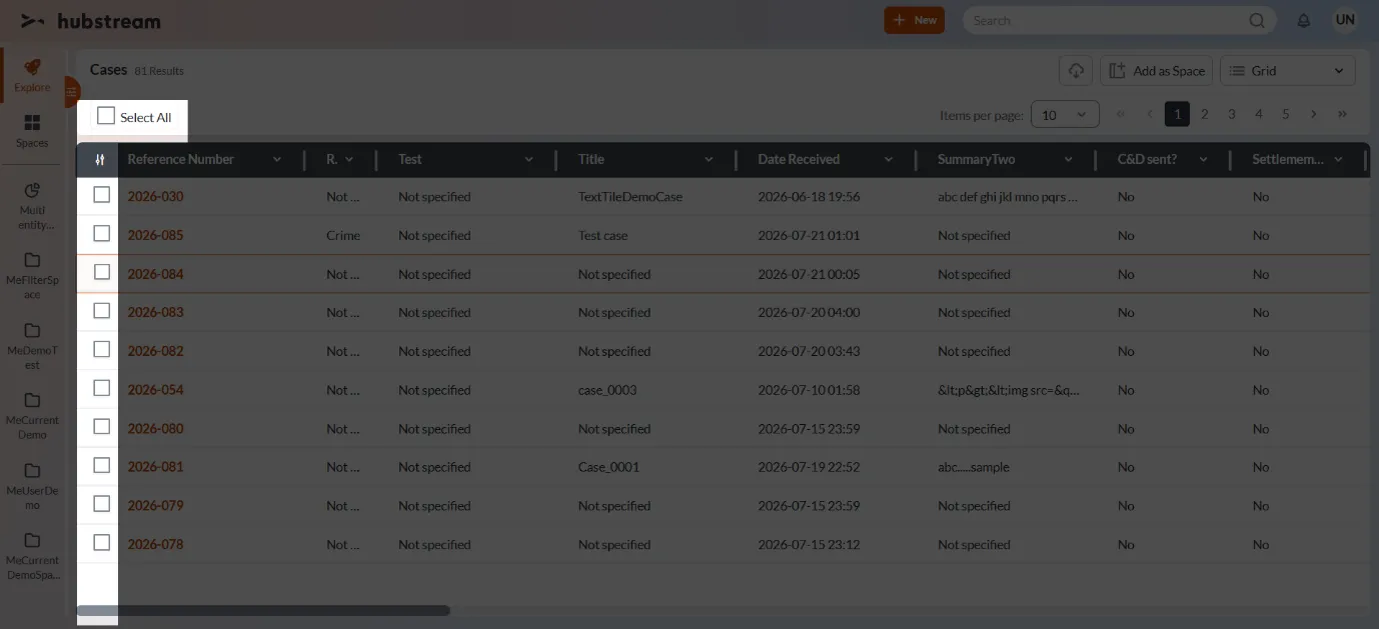
- Individual Selection: Each entity includes a checkbox for granular selection.
- Select All: A primary checkbox is available to select or deselect all records at once.
No Data Found
Across user journeys and visualizations if no data found or a search returns no results, Data space displays a no results page. The no data state is consistently shown across all visualizations.
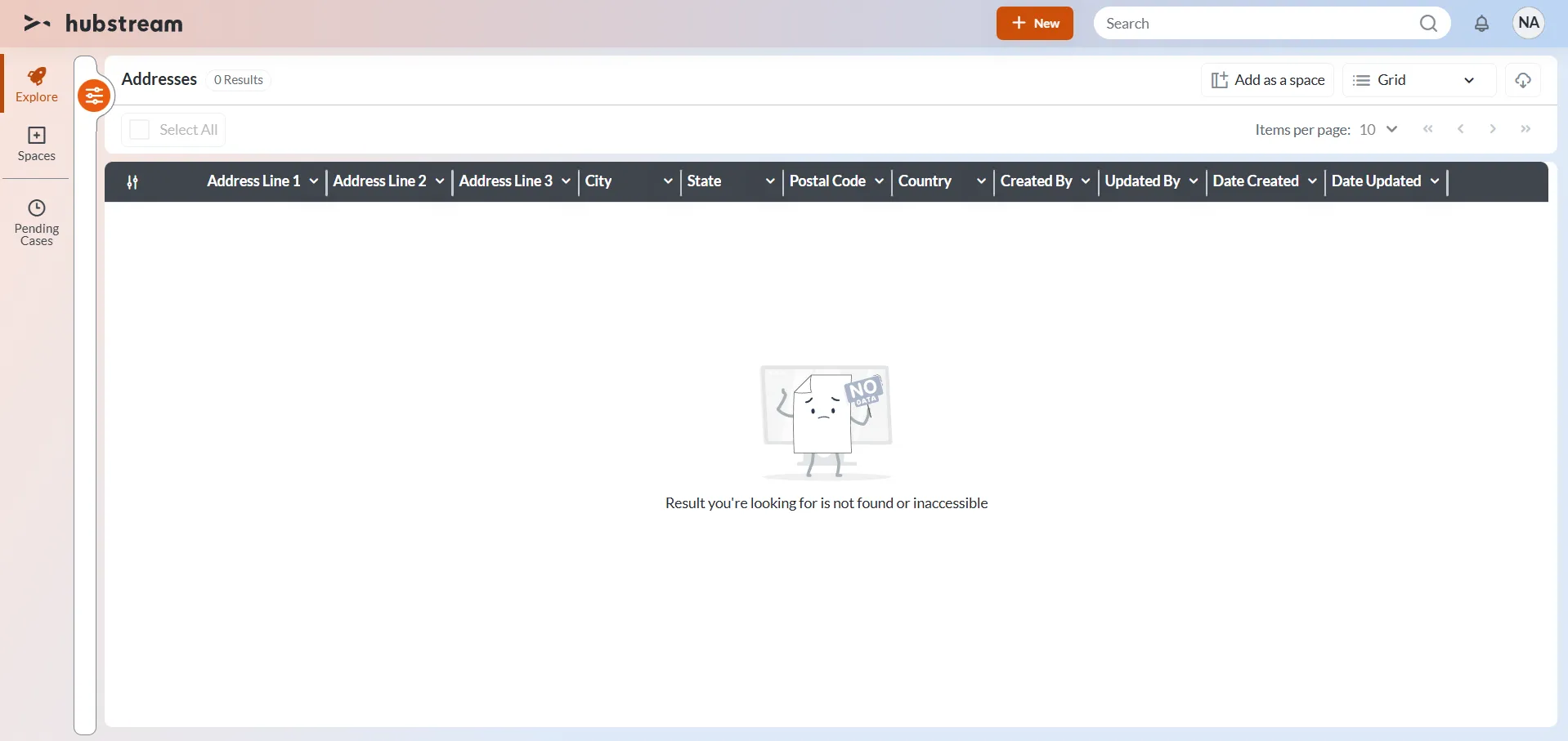 This page is displayed in the following scenarios:
- When navigating back to a journey step where the data has been moved or deleted.
- When accessing spaces that currently have no data available.
- In dashboard view, where it appears in the mini table section.
Visualization Switcher
Data space allows you to visualize an entity in different views via the visualization switcher. The applicable views are determined based on predefined rules and entity settings.
Refer to the Visualization Switcher section for more information.
Navigation Pane
It is a collapsible pane that allows you to search, filter, and navigate through entities. It also enables you to trace previously accessed entities within the space.
Refer to the Navigation Pane section for more information.