🚧 Not yet live (coming soon). Monster Tile isn’t available yet. It’s documented ahead of release, so what’s described below can still change before it ships.
🧪 Experimental feature (preview). This feature is under active development and released early so you can try it and give feedback. Behaviour, options, and results can change without notice, and it isn’t covered by the usual support and stability guarantees. Avoid relying on it for production work.
Overview
A Monster Tile draws a card you designed yourself. It has no fixed layout of its own: it renders a tile definition — a small grid of cells, each holding one widget bound to a field on the record in view. You author that definition in the Tile Monster view, paste it into the tile’s config, and every matching record page gets it.
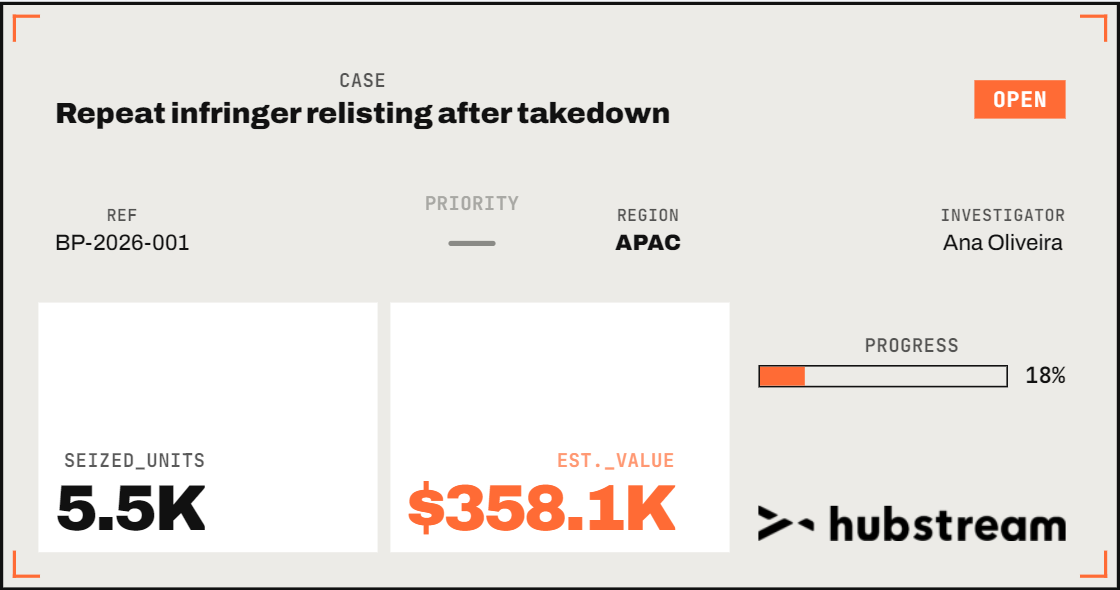
Because the design lives in the tile’s config rather than in code, changing what the tile looks like is an admin edit, not a release.
Setting one up
- Open a list of the records the tile will sit on and switch to the Tile Monster view.
- Design the tile. Preview it against several records, not just the first.
- Go to the JSON view and choose Monster Tile payload in the action bar. Select the text and copy it.
- In the admin, open the Monster Tile rule and paste it into the config JSON.
- Clear the cache and reload. That’s it — no release, no model update.
Step 3 matters more than it looks. The payload carries a Fields list alongside the design, and the builder derives that list from the design — so the tile fetches exactly the columns it draws. Editing the design by hand in the admin without extending Fields is the one reliable way to get a tile full of dashes.
The config shape
{
  "Fields": ["ID", "Name", "Status", "Priority", "IncidentType"],
  "UIProperties": {
    "EntityName": "Investigation",
    "Fit": "fill",
    "Definition": { "version": 1, "name": "Case card", "grid": { }, "cells": [ ] }
  },
  "StaticContent": {
    "NoDataMessage": "There is no record to draw.",
    "NotConfiguredMessage": "This tile has no design yet: {reason}"
  }
}| Key | Meaning |
|---|---|
Fields | The fields fetched for the record in view. Must include every field the design binds, plus ID. Derived for you by the Tile Monster JSON view. |
EntityName | The entity the tile sits on. |
Fit | fill (default) stretches the design to the tile slot and ignores its aspect ratio. aspect keeps the design’s ratio and centres it, so a wide strip stays a strip. |
Definition | The design itself, exactly as the Tile Monster view emits it. |
NoDataMessage | Shown when the fetch returns no record. |
NotConfiguredMessage | Shown when there is no design, or the design won’t parse. {reason} is replaced with the specific problem. |
In the Tile view
A Monster Tile can also be the body of a record’s card in the Tile view — the Tile Monster view’s third “where it shows” choice. The card stays the platform’s: its checkbox, its footer buttons and its link and text counts all work as on any card, and your design fills the space above the footer on the card’s overview tab. The other tabs (list, links, texts) show the standard views. Because the card supplies the checkbox and the title link, a design meant for the Tile view should carry its own title.
What the tile tells you when something is off
The tile never renders a confident-looking card over data it didn’t get:
| You see | It means |
|---|---|
| A strip reading This tile has no design yet: … | Definition is missing, empty, or won’t parse. The message is the same one the builder’s Apply button would show. |
| A strip reading There is no record to draw | The fetch came back empty. |
| A widget showing — | That field is empty on this record. |
Several widgets showing — at once
That usually means the design binds fields the tile was never told to fetch, and the tile says nothing about it on purpose: naming the missing columns would only be useful to whoever designs the tile, and you cannot change a design from here.
Open the design in the Tile Monster view instead. It checks every binding against the entity and flags the bad ones — and it will not let a design with an unresolvable binding be saved in the first place.
Limits
- Most of the tile is read-only, but two widget kinds act: a button runs one of the app’s own actions on the record (New, Add linked record, Edit, Assign, Refer, or Set a field), and a link goes to the record, a web address, an email or a phone number. Both use the app’s own machinery, so a button opens exactly the form its menu equivalent would, and the page refreshes the same way afterwards. Everything else on the tile just draws.
- A button only works if its design was finished. Tile Monster will not save a design whose button has no action, or points at a record type or field that does not exist — so a button that reaches a record page has already been checked.
- Aggregate KPIs describe one record. The tile normally fetches the single record it sits on, so a KPI set to Sum over records is summing one row. The Tile Monster inspector warns you when a design picks an aggregate.
- One design per rule. To show different designs to different records, use the rule conditions — a second Monster Tile rule with its own conditions and its own design.
- Re-importing the tile’s rule files overwrites the design. If an admin owns the design, it should not be shipped in the rule CSVs any more.
See also
- Tile Monster view — where the design comes from
- Hubstream stickers — the images the sticker widget draws from