Overview
Bulletin Board turns any list of records into a detective-style evidence board crossed with a notebook. The canvas is a cork board: record cards, sticky notes, polaroid photos, marker labels, emoji, stickers and icon badges pinned at free positions, tied together with red string. The sidebar is the notebook: section tabs (each section is its own board page), a searchable Photoshop-style layers panel, and a reading pane for the selected record.
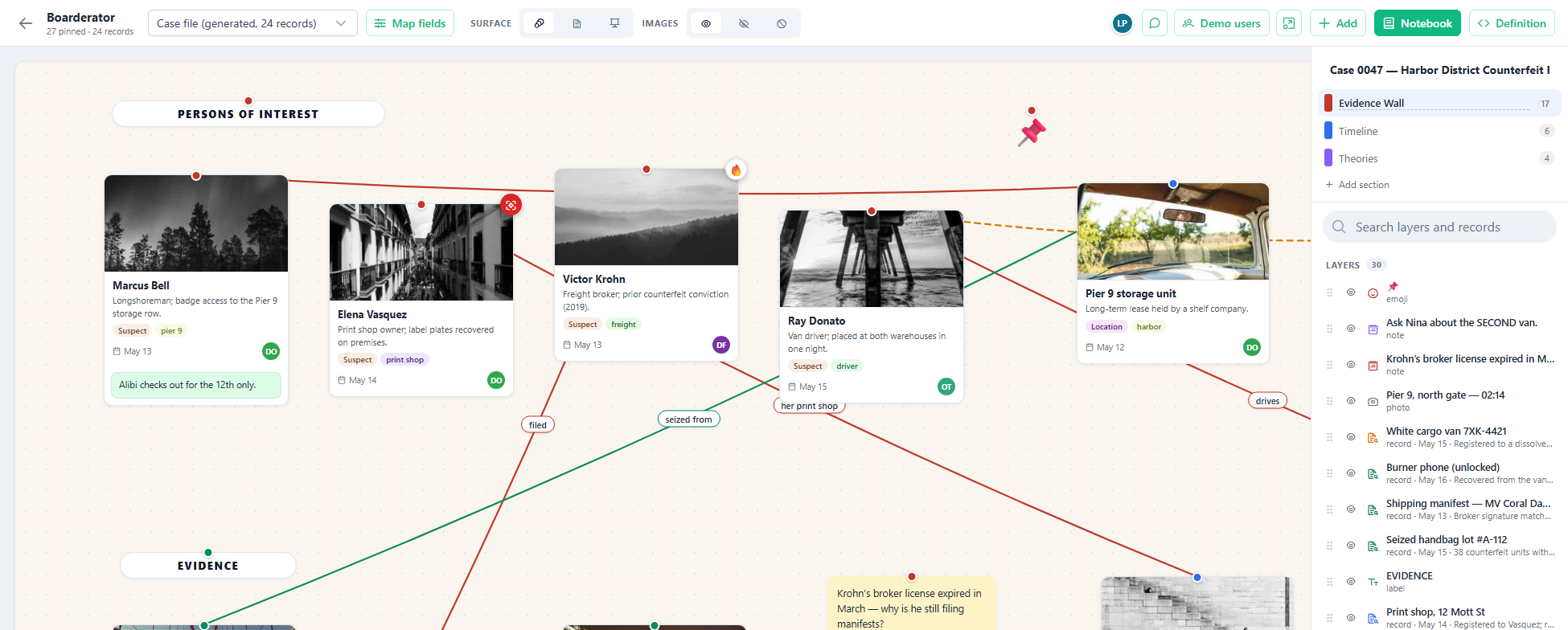
Unlike the Kanban board, nothing here writes back to records: the board is an investigation surface. Positions, strings, notes and annotations are board state; the record cards inlay live data from the current list by id, so the cards always show current values but the records themselves are never edited from the board.
Choosing what appears
Navigate to a set of records, then switch the view to Bulletin Board.
Any entity type works. Every record of the list becomes a layer — most start hidden, so the board doesn’t drown in cards. Reveal the ones that matter with the eye toggle in the layers panel, or search for them by name. The board reads the columns of whatever list it’s on and guesses sensible card parts — a name becomes the title, a summary the subtitle, an image the photo, a date the meta line, an officer-like field the attribution avatar. When the guess is wrong, fix it in Fields.
Card images find themselves. A card’s photo comes from the record’s own image column when it has one; otherwise the board fetches the record’s linked files (a case’s attached photo, say) and uses the first one’s image — the same linked-media lookup the Timeline uses. Document lists serve their images by hash automatically.
Fields
The Fields control maps source columns onto the parts of a record card:
| Part | Where it shows |
|---|---|
| Title | The card headline — also a link to the record |
| Subtitle | Secondary line under the title |
| Image | The pinned photo (a URL column; unset records fall back to their linked file’s image) |
| Date | Small meta date on the card |
| Tags | Chips under the subtitle; a comma-separated column works |
| Person | Attribution avatar + name |
Parts left unmapped simply don’t render. Record identity is never mapped — cards pin rows by the record’s own ID, so a remapping can’t scramble which card is which.
The notebook
- Sections are board pages, OneNote-style: an Evidence Wall, a Timeline, a Theories page. Add, rename, and remove them in the sidebar; each keeps its own items and strings.
- Layers lists everything on the page, topmost first. Drag rows to restack (what overlaps what), click the eye to hide or reveal a layer in place, click a row to select and scroll to it on the board.
- The reading pane opens under the layers when a record card is selected, showing every field of the record; the arrow button opens the record’s detail page.
Working the board
- Drag anything to reposition it; drag empty canvas to pan.
- Tie a string: the link button on a card arms string-tying — click another card to tie them. Click a string to label it, recolor it, make it dashed (“unconfirmed”), or cut it.
- Annotate a card with the comment button: sticky notes (taped under the card), emoji badges, Hubstream stickers, or colored icon badges.
- Add free-floating layers from the Add control in the action bar: icons, emoji, stickers, sticky notes, and uppercase label strips.
- Click a card’s title to open the record’s detail page.
- Select records with the check circle on a card; the page’s selection bar and bulk actions work on board selections, and Select All selects every record of the list. Esc clears.
- Moderate imagery: evidence photos can be inappropriate, so images can be blurred, grayed, or blocked — per card (hover chips on the image), or board-wide via the Board control’s Images policy. The same control switches the canvas surface (warm cork, cool paper, whiteboard).
The definition
Everything on the board — field mapping, board title, surface and image policy, sections, every pinned item, the strings, and the annotations — round-trips through a single JSON definition, visible in the JSON view. Record cards reference rows by id; the data itself is never embedded. Copy the JSON to save or share a board; paste one and Apply to instantiate it.
Configuration
| Setting | Default | What it does |
|---|---|---|
MaxResultCountForBoarderatorViz | 1000 | The most records the board fetches in one page. Beyond it, the top N are shown with a banner saying so. |
Known limitations
- The board only saves locally. The definition is written to your browser, not to the server, one board per record type. A server home for the definition is the likely next step (the Flowchart’s entity-setting approach is the precedent).
- No live multi-user presence. The prototype demos simulated collaborators (shared cursors and presence avatars); the shipped view is single-user until a real-time backend exists.
- Photos pasted as free-floating polaroids need a URL. There is no upload from the board; polaroid items reference an image by URL.