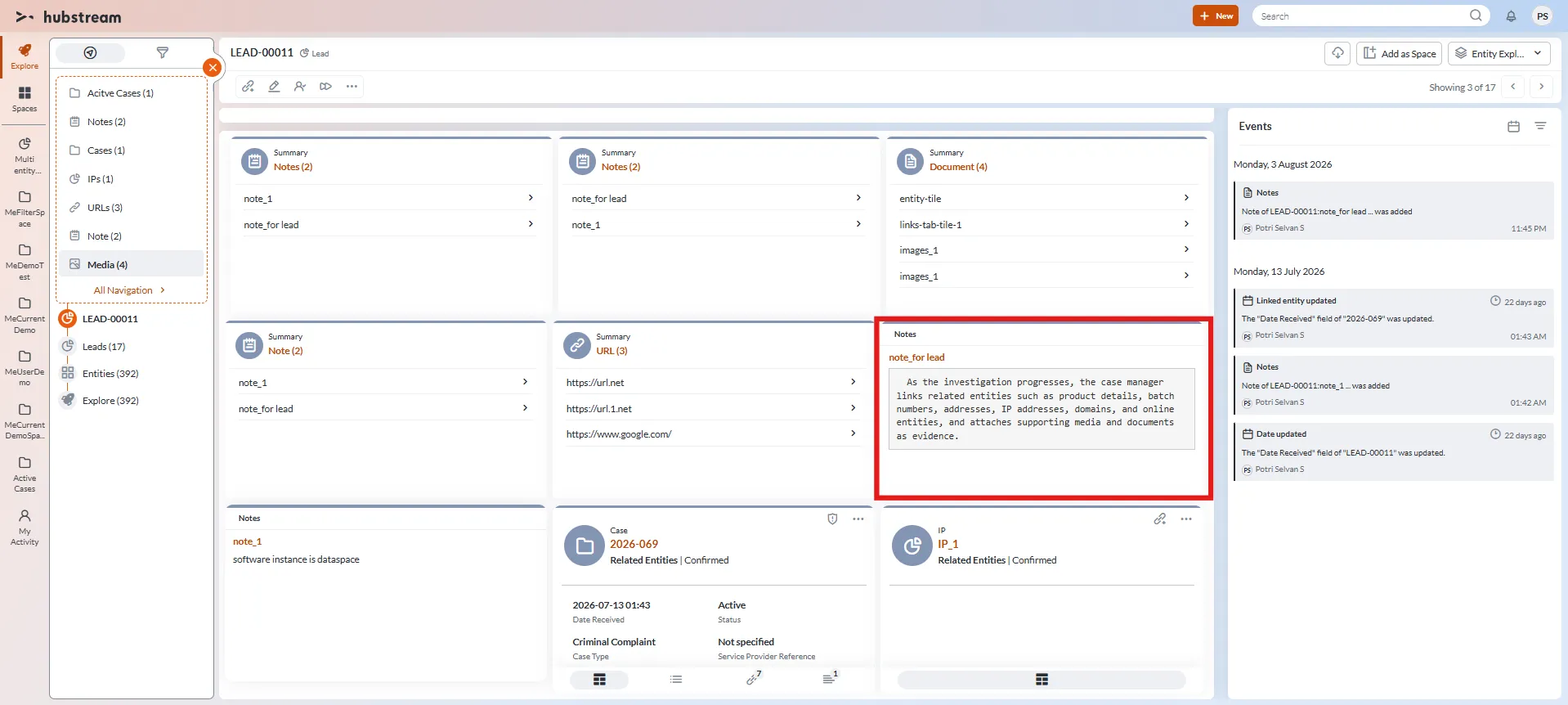
Text Tile
A Text Tile is used to display long-text information associated with an entity within the Entity Explorer visualization.
Administrators can create Text Tile Rules to display text content from:
- The current entity (Source).
- A child entity linked to the current entity (Closest).
Text Tiles are commonly used to display fields such as:
- Summary
- Notes
- Description
- Comments
- Other long-text fields
The tile displays the content of the configured long text field. When the content exceeds the available display area, a Read More option is displayed, allowing users to view the complete text within the current page.
Creating a Text Tile Rule
As an Admin, you can create a Text Tile Rule. Follow these steps:
- Navigate to the entity’s Rules page.
- Click the plus (+) icon in the header. The New Rule pop-up form will be displayed.
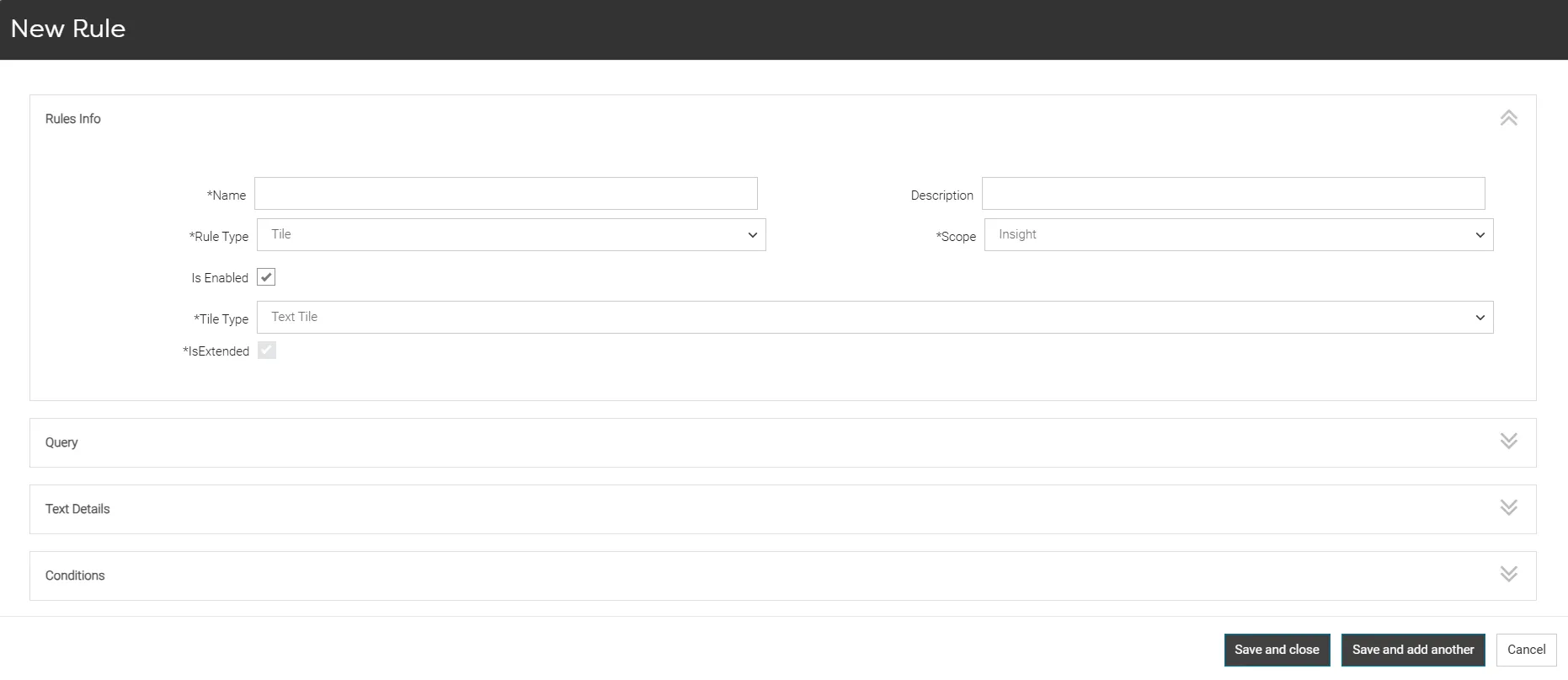
Rule Info
- Enter a rule name in the Name field.
- Select Tile from the Rule Type dropdown list.
- Select Text Tile from the Tile Type dropdown list.
- Select the required Scope (Insight or Tile View).
Query
The Query section determines the entity from which the text content is retrieved.
- Select the required Query Entity Type.
Note: When a rule is created from an entity page (for example, Case or Lead), the system automatically sets the Query Entity Type to that entity.
- Select the required Link Level.
Note: The Link Level determines the source of the text content.
- Source displays text from the query entity.
- Closest displays text from an entity linked to the query entity.
- If required, configure a query filter by selecting:
- Field Filter
- Operator
- Value
- To add additional filters, select Add Another Filter. You can configure up to three query filters for a rule.

Text Details
- Select the required Field Name.
Note: Only long-text fields are available for selection.
Examples:
- Summary
- Test
- Description
- Notes
- Comments

Conditions
The Conditions section determines when and where the Text Tile is displayed. Configure the required conditions.
- In the Condition field, select the required condition.
- Select the required Operator.
- Enter the required Value.
- To add another condition, select Add Another Condition.
- Repeat the process for each additional condition.
Save the Rule
- Review the rule configuration.
- Click Save.
Note: After a rule is saved, the system evaluates the configured conditions whenever the applicable entity is accessed. The tile is displayed only when all configured rule conditions are satisfied. If one or more conditions are not satisfied, the tile is not displayed in the entity explorer.
Examples
The following examples demonstrate how to create a Custom Text Tile Rule and display it on the entity explorer page.
Scenario 1:
As an admin, you want to display the Detailed Description field of a Lead entity in a Text Tile when the lead status is Reviewing. Follow the below steps:
Configuration
Section 1: Rule Info
- Navigate to the Rules page of the Lead entity.
- Click the plus (+) icon.
- Enter a rule name in the Name field. (Eg. Custom_Text_Tile)
- Select Tile from the Rule Type dropdown list.
- Select Text Tile from the Tile Type dropdown list.
- Select the required Scope (Insight).
Section 2: Query
- In the Query Entity Type field, the Lead entity is selected by default.
- Select Source in the Link Level field.
- Select Status in the field filter 1 field.
- Select Equals in the operator field and enter Reviewing in the value field.
Section 3: Text Details
- Select Detailed Description in the Field Name field.
Section 4: Conditions
Configure the following conditions:
Condition 1 (Selected by default)
- Condition 1 = Query Entity Name
- Operator = Equals
- Value = Lead
Condition 2
- Condition 2 = Query Result Count
- Operator = Not Equals
- Value = 0
Expected outcomes:
When the rule conditions are satisfied:
- A Text Tile is displayed on the Lead Entity’s Insights when the lead status is Reviewing.
- The tile header displays the entity field name (Detailed Description).
- The tile displays the content of the Detailed Description field.
- The tile supports displaying rich text content, including formatted text such as bold, italic, underlined text, lists, etc.
- If the content exceeds the display area, a Read More option is displayed.
- Selecting Read More expands the tile to display the complete Detailed Description content.
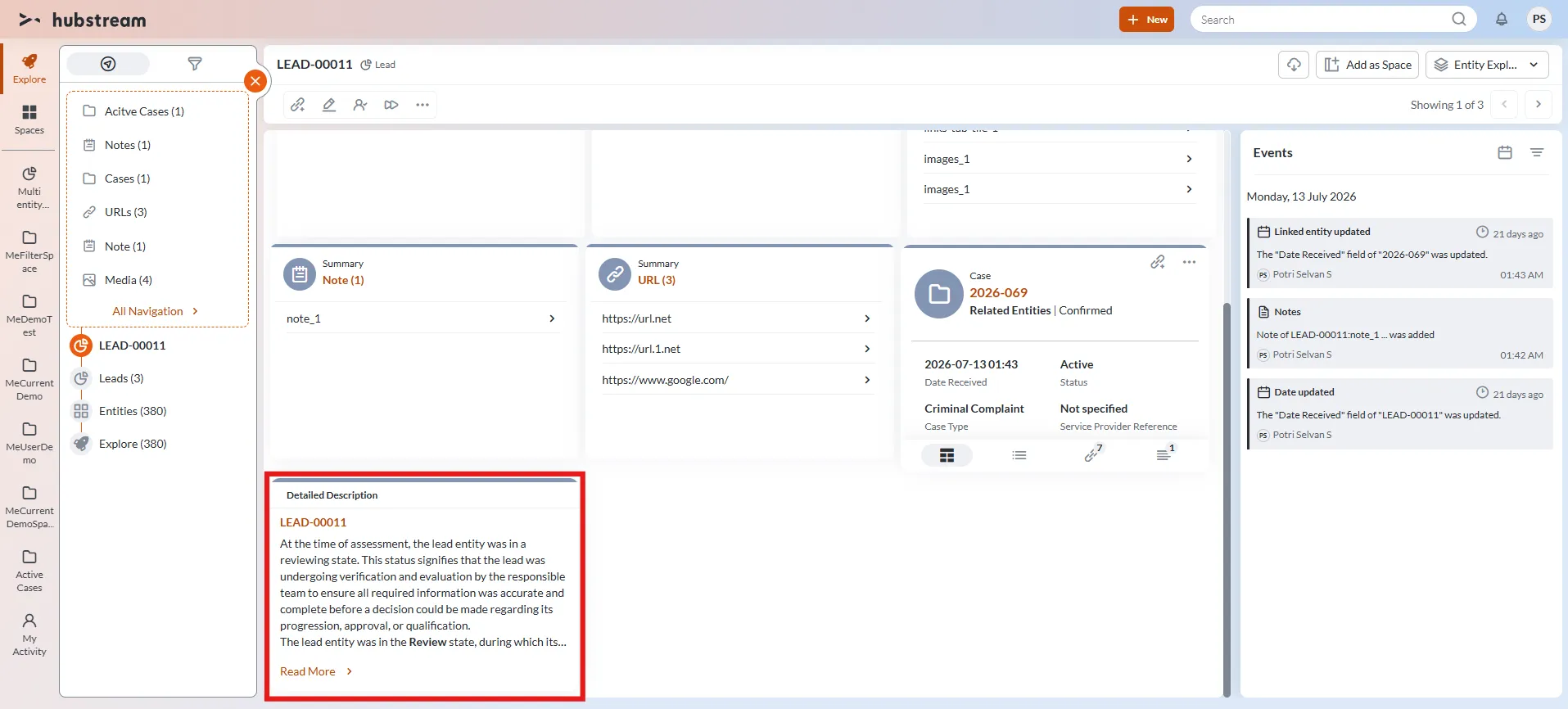
- The tile is not displayed when the Lead status no longer satisfies the configured rule conditions.
Scenario 2:
As an admin, you want to display the Closest (Note) linked entity’s field of a Lead entity in a Text Tile. Follow the below steps:
Configuration
Section 1: Rule Info
- Navigate to the Rules page of the Note entity.
- Click the plus (+) icon.
- Enter a rule name in the Name field. (Eg. Custom_Text_Tile)
- Select Tile from the Rule Type dropdown list.
- Select Text Tile from the Tile Type dropdown list.
- Select the required Scope (Insight).
Section 2: Query
- In the Query Entity Type field, the Note entity is selected by default.
- Select Closest in the Link Level field.
- Configure the following query filter:
- Field Filter = Notes
- Operator = Not Equals
- Value = [Blank]
Note: Configure the query filter so that only fields containing long-text content are displayed in the tile.
Section 3: Text Details
- Select Notes in the Field Name field.
Note: The Field Name field is mandatory. The rule cannot be saved unless a field is selected.
Section 4: Conditions
Configure the following conditions:
Condition 1 (Selected by default)
- Condition 1 = Query Entity Name
- Operator = Equals
- Value = Note
Condition 2
- Condition 2 = Parent Entity Name
- Operator = Equals
- Value = Lead
Condition 3
- Condition 3 = Query Result Count
- Operator = Not Equals
- Value = 0
Expected outcomes:
When the rule conditions are satisfied:
- A Text Tile is displayed on the Lead Entity’s Insights when a Note entity is linked (closest) to the Lead entity.
- The tile header displays the entity field name (Notes) of the linked Note entity.
- The tile displays the content of the Notes field.
- The tile supports displaying rich text content, including formatted text such as bold, italic, underlined text, lists, etc.
- If the content exceeds the display area, a Read More option is displayed.
- Selecting Read More expands the tile to display the complete Notes content.
- The tile is not displayed when the notes field is empty.