Overview
The Missing Entity Tile answers one question about the record you’re looking at: which kinds of record is this one supposed to have linked to it, and which are still missing? A case with no suspect, no supplier, no address.
It says nothing about the fields inside those records. That’s the Tiny Form Tile’s job.
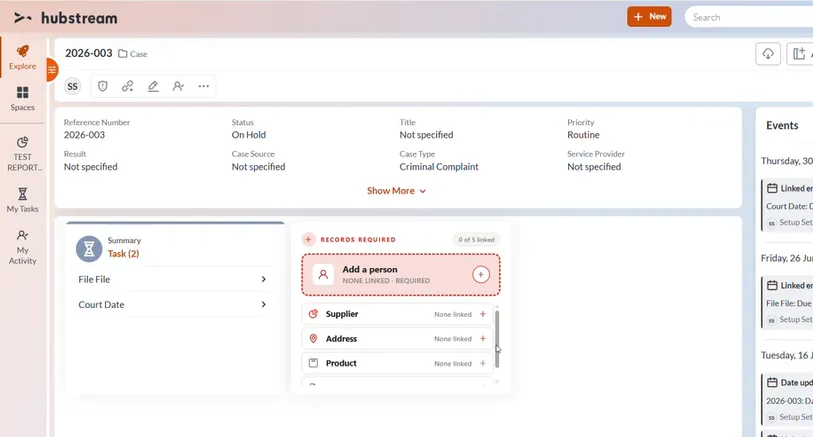
hero layout: one big call to action with the rest of the list beneath it. The pill top right is TallyLabel, “None linked” is StatusNone, and the qualifier under the call to action is RequiredNote.
The first missing record type becomes the large call to action, with the rest listed underneath. Click any of them and the normal Add Link dialog opens for that record type, already attached to the record you’re on.
Example
Everything is edited as JSON on the tile’s rule, in the admin. Changes take effect after a cache clear — no deployment, no downtime.
{
  "UIProperties": {
    "EntityName": "Investigation",
    "Slots": [
      { "Key": "Person", "EntityType": "Person", "Needed": 1, "Importance": "required" },
      {
        "Key": "Supplier",
        "EntityType": "Company",
        "SubType": "Supplier",
        "Label": "Supplier",
        "PluralLabel": "Suppliers",
        "Needed": 1,
        "Importance": "required"
      },
      { "Key": "Address", "EntityType": "Address", "Needed": 1, "Importance": "required" },
      { "Key": "Product", "EntityType": "Product", "Needed": 1, "Importance": "recommended" }
    ],
    "Theme": "light",
    "LayoutMode": "hero",
    "ActionMode": "link"
  },
  "StaticContent": {
    "Title": "Records required",
    "CompleteMessage": "All required records are linked"
  }
}
ActionMode appears in the example above. Its options aren’t documented yet.
The list — what the record is expected to have
Slots is the heart of the tile. Each entry is one kind of record, listed in the order you give. Adding one is a single line.
| Setting | What it does |
|---|---|
EntityType | Required. The record type to look for — Person, Company, Address. It has to be a type that exists and that can be linked to the record in view. |
SubType | Optional. Narrows the search to records of a particular type — see below. |
Needed | How many are expected. Defaults to 1. Set 2 and the row reads “1 of 2 linked” until both are there. |
Importance | required (default) counts toward the “2 records are missing” total and drives the tile’s color. recommended is listed and clickable, but never counts as missing and never blocks the complete state. |
Label, PluralLabel | Optional. Reword the row. You only need this when the record type’s own name is the wrong word, which in practice means subtypes. PluralLabel is used when Needed is more than 1. |
Icon | Optional override. Normally leave it blank — see the gotchas. |
Key | Optional short name for the row, used by PromotedKey. Defaults to the EntityType. |
You don’t describe the record types themselves. Each row’s wording and icon come from the record type’s own definition — the same name and picture used in Add New and in search. Rename a record type centrally, or change its icon, and this tile follows.
These three say which record the list is about. Set them once and leave them alone.
| Setting | What it does |
|---|---|
EntityName | Required. The type of record the tile appears on, such as Investigation. It has to match the record type the rule targets, or the tile has nothing to count against. |
NameColumn | Which field to use when labeling the tile with the record’s name on a list. Usually Name. |
IdColumn | Defaults to ID, and should stay that way. Change it and the tile can’t attach anything to the record. |
Subtypes
A subtype is a convention, not a separate record type. A person can be a suspect or a victim, a phone can be a business phone, but the record is still just a person or a phone.
Write the value, not the name of the field holding it:
{ "EntityType": "Person", "SubType": "Suspect", "Label": "Suspect" }{ "EntityType": "PhoneNumber", "SubType": "Business", "Label": "Business phone" }The value is enough, because the field holding it is found for you. That matters, because the field is named differently on every record type — Type on one, Category or Classification on another — and often isn’t there at all.
| Setting | What it does |
|---|---|
SubTypeField | Optional. Names the field explicitly. You need it in two cases: when the same value appears in more than one drop-down on that record type, and when the type is kept in a free-text field rather than a drop-down. The tile tells you which case you’re in. |
A subtype changes the wording only. The icon stays the person icon, because a suspect is a person, and clicking the row opens the ordinary Add a person dialog. It doesn’t pre-set the type — whoever fills the form chooses it.
Appearance
| Setting | Values | Effect |
|---|---|---|
Theme | light, dark | The card’s palette. Match the rest of the page. |
LayoutMode | hero (default), list, compact | hero is one big call to action plus the list beneath. list is the list only, no call to action. compact is the call to action only. |
ShowSatisfied | true (default), false | Keeps the record types that are already there on the list, ticked and dimmed, so it reads as a whole checklist. Set false to show only what’s missing. |
PromotedKey | a slot Key | Forces one particular row into the call to action. Leave it blank and it promotes the first required one that’s missing. |
Pulse | true (default), false | A slow pulse on the header icon, and only when three or more required records are missing. Set false for a calmer dashboard. |
Severity | info, warn, critical | Normally leave this out. The color is worked out from how many required records are missing: none is calm, one or two is amber, three or more is red. Set it only to pin it. |
On a list of records
The tile appears once per record on screen, so a list of twenty cases shows twenty tiles. Two things control that.
The record name appears only when it’s useful. That’s automatic, with nothing to set. On a single record the tile is the page, so repeating the case number would be noise and it’s hidden. On a list, each tile is labeled with its record so you can tell them apart.
| Setting | What it does |
|---|---|
ShowOnlyWhenSingleEntity | Set true to hide the tile on a list and show it only when someone opens a single record. Defaults to false. |
Wording
Every word the tile can say is listed here, so it can be reworded or translated without a change to the product. Items in braces are filled in automatically.
| Setting | Default | Where it appears |
|---|---|---|
Title | Records required | The heading, top left. |
Subtitle | — | Second line. Leave it blank to use the record’s own name. |
CompleteMessage | All required records are linked | Replaces the call to action once nothing is outstanding. |
ActionLabel | — | The call to action. Leave it blank and it writes “Add a supplier” itself. |
AddPrefix, OpenPrefix | Add, Open | Used to build that wording. |
TallyLabel | {done} of {total} linked | The pill, top right. |
MissingSingular, MissingPlural | record is missing, records are missing | Read aloud by screen readers. |
StatusNone | None linked | A row with nothing linked yet. |
StatusLinked | Linked | A row that’s satisfied. |
StatusPartial | {have} of {needed} linked | A row needing more than one. |
RequiredNote, RecommendedNote | required, suggested | The qualifier under the call to action. |
ReviewLabel | Review linked records | When there’s nothing to promote. |
NoDataMessage | Linked records could not be read for this record. | When the tile couldn’t read the record at all. |
NotConfiguredNote | not configured | On a row whose settings couldn’t be understood. |
Before you roll it out
- Direct links only. It counts records linked straight to the record in view. A supplier attached to a linked company doesn’t count.
- A row it can’t understand is shown, not hidden. If a record type or a subtype value doesn’t exist, the row appears grayed out with the reason on hover, and the tile won’t claim to be complete while it’s there. Hiding it would read as “nothing of this kind is expected”, and counting it as missing would invent a gap.
- “Linked records could not be read” isn’t the same as complete. If the tile can’t read the record it says so plainly, in gray. It never shows the green all-clear unless it has actually checked.
- Rows respect permission. A row is only clickable if you’re allowed to create that type of record and link it to this one. Otherwise it’s still listed, just not a button.
- Subtype values must match exactly. Use the value as it’s stored on the record, not its display wording. If a subtype row is permanently stuck at zero, check that first.
- A blank icon means the record type has one we don’t carry. The tile uses whatever icon the record type is set up with. If it comes out blank here it’ll be blank in Add New too, so fix it centrally on the record type rather than on this tile.
- Long lists scroll. The tile is a fixed height like every other tile. Add as many rows as you like — the list scrolls, and the call to action stays put.