Overview
The QR Code Tile puts a QR code on the Entity Explorer page. Someone points their phone at the screen and lands wherever the code sends them — no typing a URL, no hunting for a link.
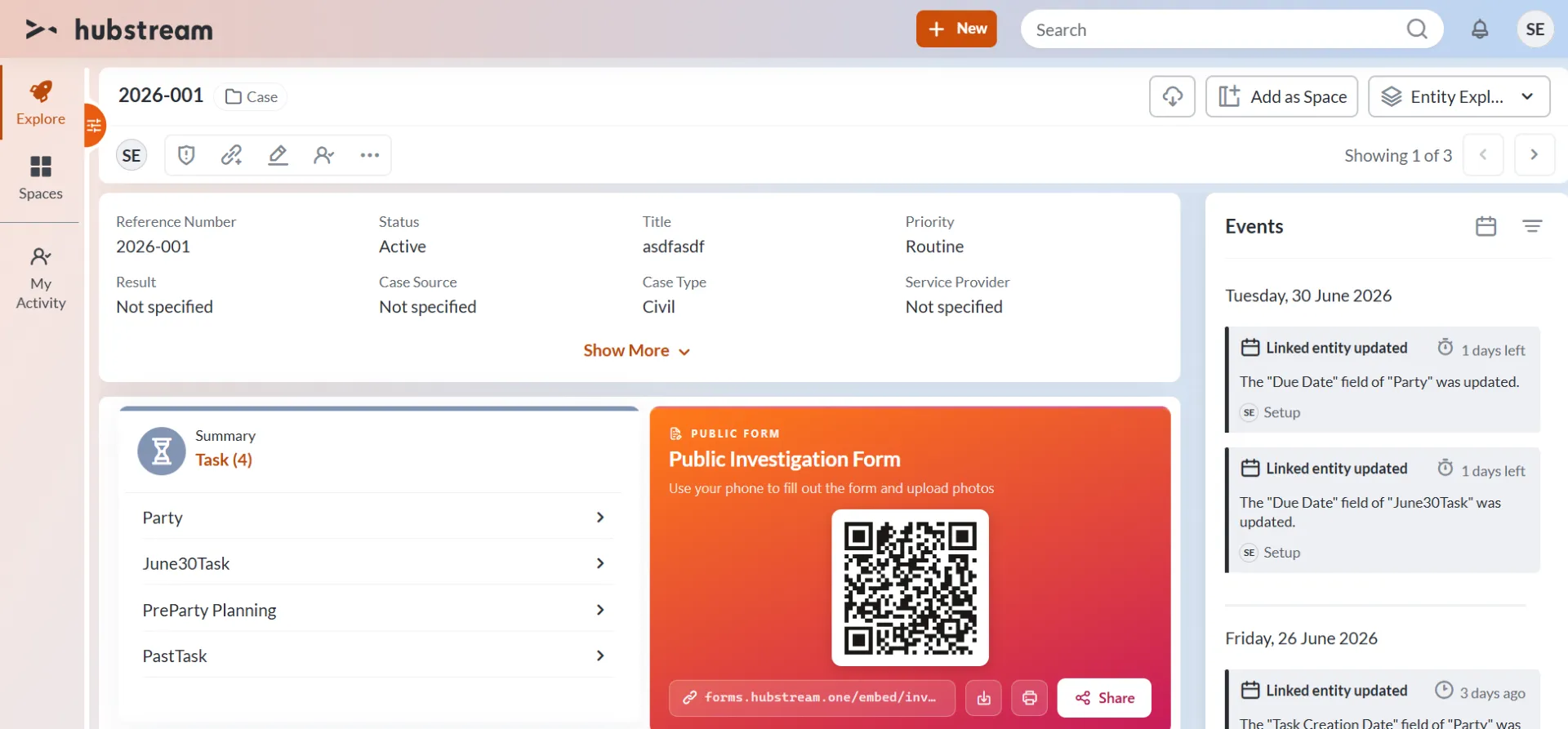
The tile pointing at a public form. The target URL sits under the code, with buttons to download it, print it, or share it.
What it can point at
- A mobile public form, as in the example. Someone in the field scans the code and fills the form out on their phone, photos and all.
- An internal site — these docs, or the Sticker Studio.
- A phone number, so scanning the code places a call.
What’s on the tile
- A label and title. “PUBLIC FORM” and “Public Investigation Form” in the example.
- A line of instruction, telling whoever scans it what they’re about to do.
- The QR code itself.
- The target URL, so you can see where the code goes before scanning it.
- Buttons to download the code, print it, or share it. Printing matters: a code taped to a wall or stapled to a file works the same as one on screen.
Configuration
The tile is configured in the admin. The exact keys aren’t documented yet.