Overview
Kanban turns any list of records into a drag-and-drop board. Columns come from a field — status, assignee, team, or priority — and dragging a card between columns records the move on the board.
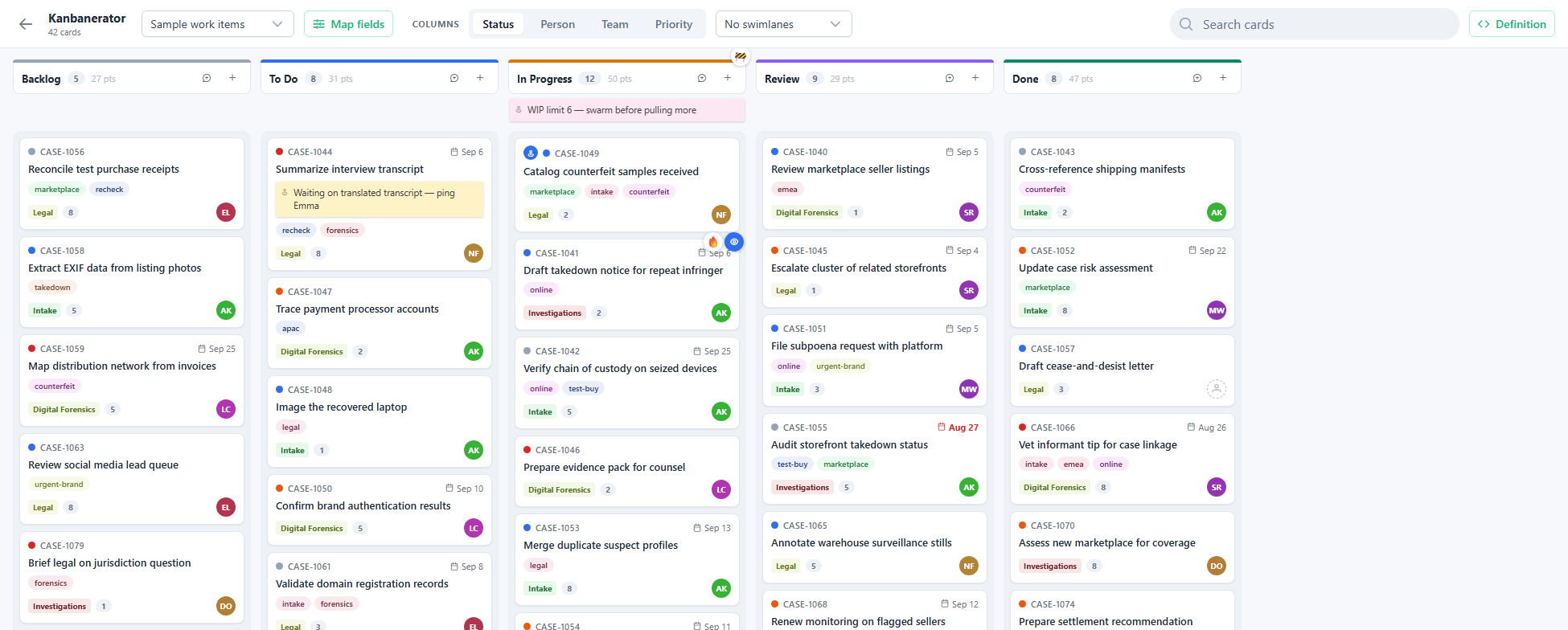
One thing to understand up front: dragging a card edits the record. When the grouping is a real field — status, typically — dropping a card into a column writes that value to the record itself, the same way editing the field on a form would. The card confirms the save with a brief green pulse on the changed property; if the write fails (or you don’t have edit permission on that entity), the card snaps back to where it was and the board says why. Only things that have no record equivalent stay on the board alone: card order within a column, pin-to-top, and annotations.
Choosing what appears
Navigate to a set of records, then switch the view to Kanban.
Any entity type works. The board reads the columns of whatever list it’s on and guesses sensible roles — something status-like becomes the columns, a name becomes the card title, a person-like field becomes the assignee. When the guess is wrong, fix it in Fields.
Fields
The Fields control maps source columns onto the parts of the card. Rather than naming abstract roles, the panel shows a picture of a card with numbered callouts — a little legend — and each numbered dropdown picks the column that fills that spot:
| # | Where it shows | Notes |
|---|---|---|
| 1 | Priority dot | Colored dot at the card’s top edge |
| 2 | Card reference | The small code on the card — display only; moves and pins stick to the record itself |
| 3 | Due date | Red when the date is in the past |
| 4 | Card title | The main text on every card |
| 5 | Tag chips | A comma-separated column works |
| 6 | Team chip | Colored chip in the card footer |
| 7 | Points badge | Numeric effort, summed per column header |
| 8 | Assignee avatar | Initials in the card footer |
Parts left unmapped simply don’t render. What the columns group by isn’t mapped here at all — that lives in Columns by (next section); when the grouping field happens to also feed a numbered card part, the picture’s column header shows that number.
Columns and swimlanes
Columns by is dynamic: any field of the record type that has a dropdown behind it (a value list) can group the board — status, priority, region, brand, whatever the entity actually carries. The choices are discovered from the data and its metadata, not from a fixed list. A choice that also feeds a numbered card part shows its legend number.
Swimlanes adds a second, horizontal grouping by any other dropdown field: columns by status and lanes by region gives you a grid of region rows against status columns.
When the grouping field has a value list — a status field, typically — every value gets a column, including empty ones, in the list’s own order, so the board always shows the full pipeline and you can drag a card into a stage nothing has reached yet. Values found only in the data are appended after, alphabetically, and a “Not set” column collects records with no value.
Visuals
The Visuals control restyles the board without touching what’s on it:
- Board theme — the same theme set as the Timeline: Light (default), Dark, Light fade, Warm fade, and Dark fade. Themes repaint every board surface: background (the fades are gradients), column wells, cards, borders, and text.
- Column colors — the accent bar and dot colors of the columns. Auto gives every value its own stable hue (nothing is keyed to particular value names — those are your install’s own); the named palettes are the platform’s shared set — Ember, Tableau, Slate, Earthen, plus the sequential ramps (Viridis, Inferno, Magma, Plasma, Cividis, Turbo, Warm, Cool, Spectral) — the same ones the Timeline’s lanes and Report charts use.
Both choices are part of the board definition, so they persist per record type like everything else.
Working the board
- Drag a card to another column to move it there — this updates the record’s field (status, priority, whatever the columns group by), with a green pulse confirming the save. Dragging up or down reorders within a column, which is board-only. Moves that can’t write — a quick-added card, a grouping that isn’t a real field, a drop into “Not set” — move on the board without touching data.
- Pin a card to the top of its column with the pin button; pinned cards sort before everything else.
- Add a record with the + at the top of a column (or the “Add Case” button at the bottom — it names the record type you’re looking at). It opens the same New form as everywhere else in the app, and only shows when you’re allowed to create that type.
- Search filters the cards; the columns stay put so the board doesn’t reshuffle under you.
- Click a card’s title to open the record’s detail page.
- Select records with the check circle on a card; the page’s selection bar and bulk actions work on board selections, and Select All selects every card. Esc clears.
Annotating the board
Cards and columns both take pins, via the comment button that appears on hover:
- Notes — sticky-note paper in five colors, pinned to a card or to a column header.
- Emoji — a badge on the card’s corner.
- Stickers — full-size Hubstream stickers, rendered large and tilted like the real thing.
- Icons — a colored icon badge, searchable from the product’s icon set.
Column pins belong to the column of that grouping — a note on the “To Do” status column disappears when you group by team, and comes back when you return to status.
The definition
Everything on the board — field mapping, grouping, card moves, quick-added cards, and pins — round-trips through a single JSON definition, visible in the JSON view. Copy it to save or share a board; paste one and Apply to instantiate it.
Configuration
| Setting | Default | What it does |
|---|---|---|
MaxResultCountForKanbanViz | 1000 | The most records the board fetches and plots in one page. Beyond it, the top N are shown with a banner saying so. |
Known limitations
- The board layout only saves locally. The definition — mapping, grouping, card order, pins — is written to your browser, not to the server, one board per record type (your Cases board and your Customs Recordals board are independent). Field values written by drags are real record edits and are shared, of course. A per-space server home for the definition is the likely next step (the Flowchart’s entity-setting approach is the precedent).
- Last write wins. Drag writes have no optimistic concurrency — two people moving the same card at once won’t be warned.
- Drops into “Not set” don’t clear the field. Clearing a value is a form gesture, not a drag gesture, so that move stays board-only.
- Adding doesn’t pre-fill the column. “Add Case” on the In Progress column opens the standard New form; it doesn’t yet pre-set the status you clicked under.