Overview
The StickerBook Tile flags interesting things about an entity, or the entities linked to it, with stickers on the Entity Explorer page. Rules decide which stickers appear, written the same way as other tile rules.
Stickers are meant to catch your eye. Open a case with something worth flagging and you see it at once, without reading a single field.
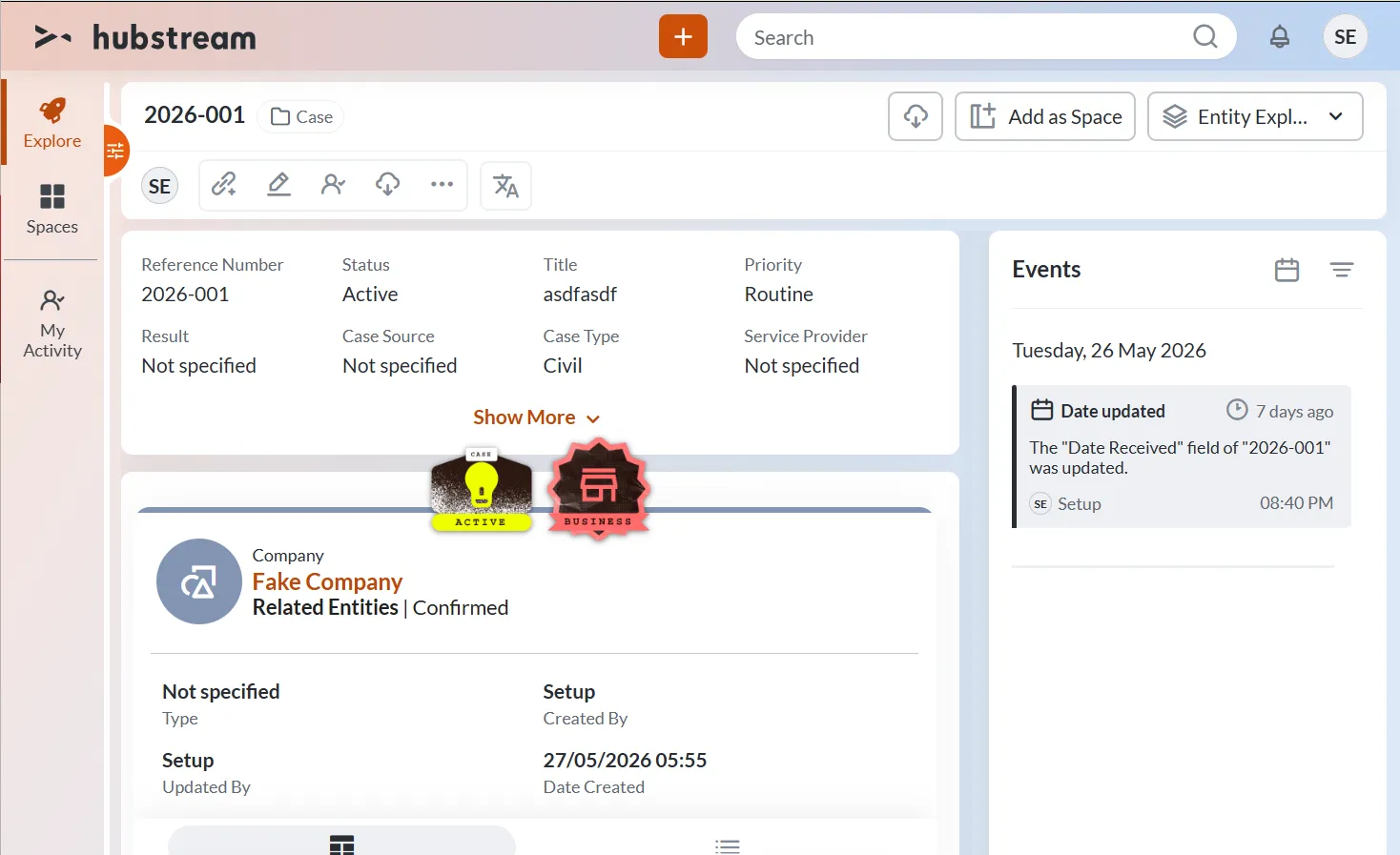
top layout mode. Two conditions matched — an active case, and a related company — so their stickers sit at the top center, drawn a little smaller and clear of the content beneath.
This tile needs the HubstreamStickers app. You create every sticker there, and a rule points at one by its sticker code. See HubstreamStickers.
The tile’s Properties JSON is configured in the admin. Rules run on the server against the entity you’re on and the entities linked to it.
Where it appears
The tile draws on the Entity Explorer view. Stickers appear a moment after the rest of the page.
If no rule matches, the tile hides completely. There’s no empty sticker tile, so a broad rule set costs nothing on entities it doesn’t apply to.
The Properties shape
{
  "Type": "StickerBookTileContainer",
  "Properties": {
    "LayoutMode": "top" | "random" | "grid",
    "Conditions": [
      {
        "Scope": "Source" | "Closest" | "Any",
        "Field": "EntityType" | "<EntityType>.<field>",
        "FilterType": "Exact" | "Partial",
        "Comparison": "Equals" | "NotEquals" | "In" | "NotIn",
        "Value": "<value to test against>",
        "Sticker": "<sticker code from HubstreamStickers>",
        "HoverText": "<text shown when hovering the sticker>"
      }
    ]
  }
}
Apart from Conditions, LayoutMode is the only setting worth changing.
Keep any _comment entries in the rules. They explain the structure, and an LLM reads them when it writes or extends a rule set.
LayoutMode
| Value | Layout |
|---|---|
top | Lines the stickers up at the top center, drawn a little smaller, with just enough space that they don’t collide with the action items around them. Usually the most useful mode. |
random | The tile draws its own shape and scatters the stickers inside it, limited in how much they may overlap. Positions are re-rolled on every refresh, so stickers shift each time. |
grid | The tile draws its own shape and lays the stickers out in a grid. |
Conditions
Each condition that matches puts one sticker on the tile.
| Key | Meaning |
|---|---|
Scope | Which entities to look at. Source is the entity you’re on, Closest is the entities linked to it, Any is both. In DataSpace you’re always inside a link chart, so this is the difference between the thing you’re looking at and the things related to it. |
Field | EntityType checks whether an entity of that type is in scope. <EntityType>.<field> (e.g. Investigation.Status) checks a field value on that type. |
FilterType | How the value is matched — Exact or Partial. |
Comparison | Equals, NotEquals, In, or NotIn. |
Value | The value to compare against. Text only — see below. |
Sticker | The sticker code (a GUID) from HubstreamStickers. |
HoverText | What to show when someone hovers the sticker. |
Examples
Flag a related company
Any scope, so the sticker shows on a company itself and on any case linked to one.
{
  "Scope": "Any",
  "Field": "EntityType",
  "FilterType": "Partial",
  "Comparison": "Equals",
  "Value": "Company",
  "Sticker": "<business sticker code>",
  "HoverText": "This is a business"
}
Flag an active case
Source scope, so it only fires on the case, not on its linked entities.
{
  "Scope": "Source",
  "Field": "Investigation.Status",
  "FilterType": "Partial",
  "Comparison": "Equals",
  "Value": "Active",
  "Sticker": "<case active sticker code>",
  "HoverText": "This case is active"
}
Watch the type name. The interface calls everything a Case, but the model type here is Investigation. Rules run against the model, so Investigation.Status matches and Case.Status matches nothing. An LLM writing rules needs your real model for the same reason.
Text values only
Conditions compare text. Dates and numbers aren’t handled yet, so you can’t write a rule like “due within three days” or “amount over 10,000”.
Seeing your changes
Rule changes are cached. Empty the cache, reload, then navigate back into the entity. The page won’t re-check the tile for an object you’re already sitting on.
Common gotchas
- No match means no tile. If you expect stickers and see none, check the scope first, then the type and field names.
- Type and field names must match the model, not the labels in the interface.
- The sticker code must exist in HubstreamStickers. A stale or mistyped code leaves the condition with nothing to draw.
- Text comparisons only. Dates and numbers are quietly out of scope.
randommoves stickers on every refresh. That’s intended. Usetoporgridif you want them to stay put.