Overview
Chronos View answers a question that’s awkward to answer any other way: across many cases, each with its own tasks and due dates, what’s coming up and what’s overdue?
It’s a visualization you pick the same way you’d pick a link chart, and it follows one idea. A line marks now and splits time in two. Everything on one side has happened. Everything on the other hasn’t. The header counts each side, so you can see at a glance that you’re one item overdue and eight ahead.
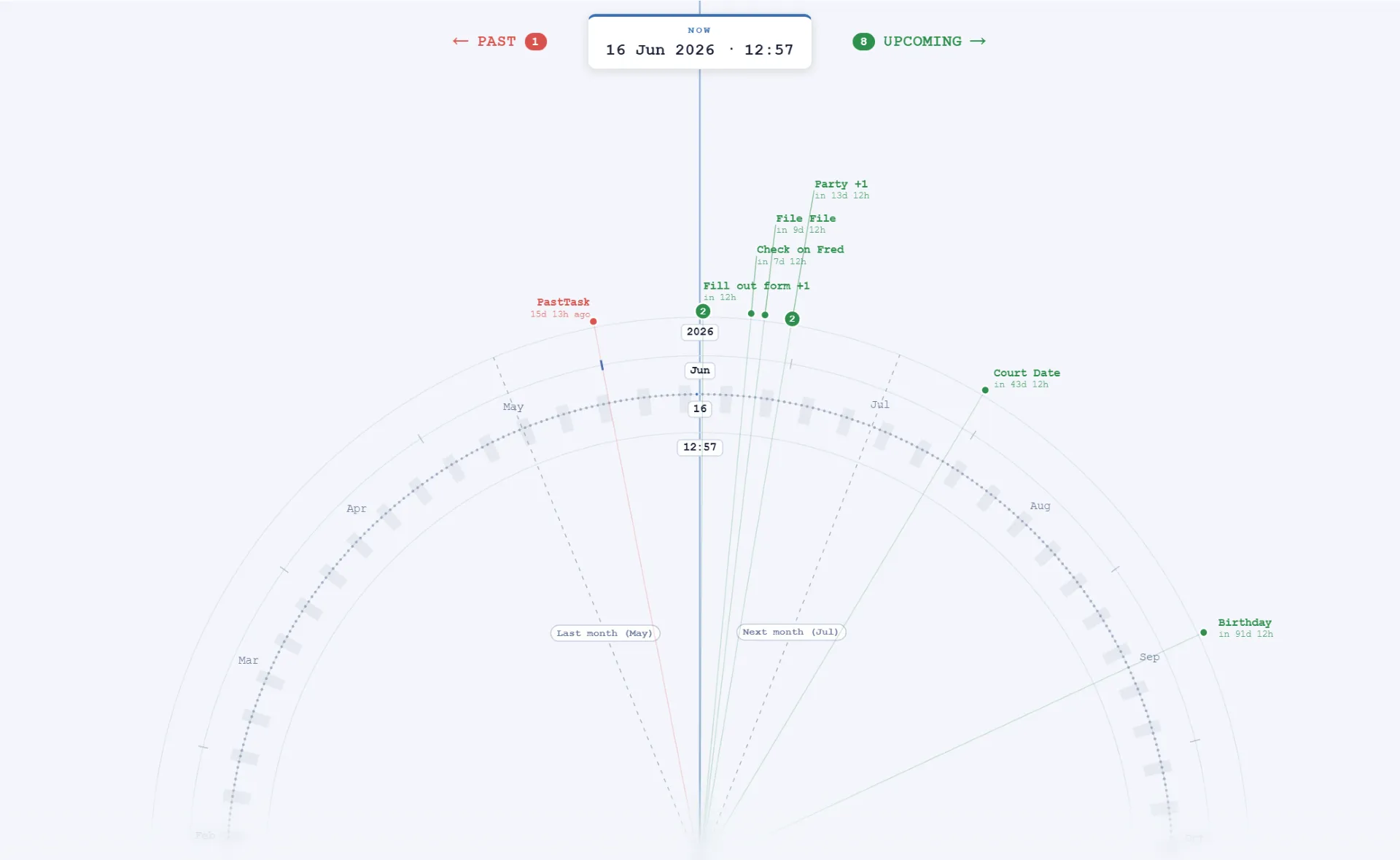
Now splits the view: one overdue task on the left, eight upcoming on the right, each counted in the header. Labels show the distance from now, and the two 2 badges are points where items sat close enough together to collapse.
Choosing what appears
Chronos shows the entities you navigated to, not their children. That’s the main difference from a link chart, where you open a case and ask for its tasks. Here, if you want tasks, navigate to the tasks and then switch to Chronos.
So the view follows your selection. Navigate to nine tasks and it plots nine. Select four of them and it plots those four.
Everything in the platform is auditable, so everything has dates and any entity type can be plotted. Cases work, and they all sit in the past, since you can’t create a case in the future. Drive the view from whichever date matters: date created, date updated, date closed, or a due date if the entity has one.
Reading the view
- Past items sit on one side of the now line and upcoming items on the other. Each is labeled with its distance from now:
in 7d 12h,15d 13h ago. - Hover a dot to inspect it, then click to open it. The journey iterates as it does anywhere else, so you can move into the entity and back.
- Crowded points collapse. Items that fall too close together merge into one marker with a count, which gets more likely as you zoom out. Hover it to reach the individual items.
Zooming
Zoom in and out freely. What Chronos draws on top changes with the zoom level.
| Zoom level | What you see |
|---|---|
| Hours | Day and night shading, so an overnight task is obvious. The shading is a simple linear overlay and isn’t mapped to a time zone. |
| Days and weeks | Saturday and Sunday grayed out, so a due date on a weekend stands out. |
| Months | Month bands, with no day or night shading. |
| Years | Year bands. |
Chronos also marks relative dates: today and yesterday, last week and next week, last month and next month. So you always know roughly where you are.
Moving the now line
Drag the now line to another point in time and the view splits around it. Chronos tells you how far that is from now — “8 days from now” — and the exact time you’ve landed on. Click to snap back to today.
That’s what lets you ask “what does the week around the court date look like”, not just “what does this week look like”.
What it’s good for
Chronos is built for what’s due and what’s overdue across a body of work. It’s less useful for reading one case’s history as a timeline, though the past side will show you one.
If you want the same split for a single entity without leaving its page, use the Horizon Tile. If you’d rather see the same work laid out on a normal calendar, use Calendar View.
Known limitations
- Due dates are dates, not date-times. Tasks land at midnight, which shows up once you zoom in to hours.
- Day and night shading isn’t time-zone aware. Treat it as a visual cue, not a statement about local working hours.
- Plotting more than one entity type is unverified. The view is written to handle it and should, but that hasn’t been confirmed in a test environment.
- Changes only save locally, not to the server. That’s true of the other views too — Report, Calendar, and Timeline.